Secure Your Android Browser: Chrome’s Latest Tips
The virtual environment is a continuously changing terrain and so threats to our online security become more advanced. In the case of Android users, Google chrome is mainly the entry point to this world and as such the security aspect of Google chrome takes center stage. Luckily, Chrome is constantly being developed and compatibility against malicious entities. The article takes us through the recent tricks and functions in Chrome on Android and it will enable you to surf the net with a lot of security.
The Foundation of Security: Updates and Secure Connections
Updating your Chrome browser and the Android operating system should not be a mere suggestion, but it is a serious security measure. Google releases updates on a regular basis which are very crucial as they contain new protective features and security patches. Failure to make such updates keeps you at risk of known attacks.
Automatic Updates: Your First Line of Defense
Table of Contents
Make sure automatic updates are turned on in your Android OS as well as in the browser itself, Chrome. Brands using this proactive measure will ensure you are always up to date and enjoy the updated security hacks and patch-ups. The Google Play Store normally allows the setting of app automatic updates. To update your Android system, tick on the system setting of your device.
All the time Use Secure Connections (HTTPS-First Mode)
Chrome has a new feature that was formulated long ago called Always Use Secure Connections also referred to as HTTPS-First Mode. This environment is automatically trying to migrate HTTP and HTTPS (Hypertext Transfer Protocol Secure) connections to HTTPS (Hypertext Transfer Protocol Secure) where it can. HTTPS prevents malicious parties to eavesdrop and tamper data between your browser and the site because it covers that communication with an encrypted message.
- How it works: When enabled, Chrome prioritizes HTTPS connections. Chrome will display a warning on a site that is not shown using HTTPS and unless you do want to access it using an insecure connection, you do not proceed. On public sites this warning is enabled automatically in Incognito Mode as of Chrome 127 (June 2024). Chrome automatically also blocks the downgrade of HTTPS to plaintext HTTP at sites it recognizes that you usually use to connect to via HTTPS (with Chrome 133 in January 2025).
- Enabling it: You can enable “Always Use Secure Connections” in Chrome’s Privacy and Security settings. You have an option of warning on all insecure sites or on insecure public sites.
Smart Security to Enjoy Greater Security
In addition to the basic features, Chrome includes a number of more advanced security features, which should help resist more advanced attacks.
Safe Browse: Proactive Threat Detection
Safe Browse is a strong feature of Google incorporated in Chrome that helps you defend against malware, Phishing pages, and other malicious web materials. It keeps constantly updated lists of dangerous web resources and uses it to scan all the sites you visit.
- Enhanced Protection: While Standard protection offers security from known dangers, “Enhanced protection” is Google’s most secure Browse experience. It offers active defense against the known and new threats. When the option is turned on, Chrome transmits URLs, some fragment of page contents, extension behavior, as well as system data to Google Safe Browse to perform a detailed analysis of unexpectedly downloaded files and web pages. This information is only applied with regard to security.
- Benefits: Enhanced protection not only improves your individual security but also contributes to a safer web for everyone by helping Google identify new threats faster. It also gives you fair warning when you are using a password that has been stolen in a data breach.
- Accessing Settings: You can adjust your Safe Browse level within Chrome’s Privacy and Security settings.
Site Isolation: Sandboxing Your Browse
An essential security characteristic in Chrome is Site Isolation that isolates properly every site in its own rendering OS process. This implies that even in the case evil site succeeds in generating vulnerability at the Chrome renderer, then it cannot access either the data or code of other sites that you may be browsing. This strong sandboxing minimizes the effect associated with possible exploits to a great extent. It works best on Android devices with 2GB +
Javascript Optimization and Security
Chrome has achieved a way to address Javascript optimization, with a subset of options available to the user in reducing the attack surface. By turning off Javascript optimizations, Chrome may be made more difficult to exploit at the possible expense of performance on some web sites. This option is available in Settings -> Privacy and security -> Javascript optimization and security.
Your Privacy and Permissions
The security and privacy are close to each other. Chrome is flexible in relation to manipulating web sites to your device and information.
Reviewing Site Settings and Permissions
The websites demand access to functionalities such as your location or the use of a camera, a microphone, or notifications and usually ask the user to grant different permissions. It is imperative to continuously monitor and administer these allowances.
- Granular Control: You can go into Chrome’s Site settings to see a comprehensive list of permissions and adjust them for all sites or for specific ones. As an example, you will be able to block the pop-ups and redirects, avoid intrusive advertisements, and use the access to the motion sensors or NFC of the device.
- On-Device Site Data: Control whether websites can store information about your activity on your device, which can be used to keep you signed in or remember items in your shopping cart.
Incognito Mode: Understanding its Limitations and Uses
The Incognito Mode provides some privacy in that it does not store your Browse history, cookies or site information on your device when you close all the Incognito windows. This can be applied to shared devices, or to Browse anonymously (without record on the local machine).
- What it does: It keeps your Browse private from others who use your device. Sites recognize you as a first time customer (when you are not signed in). Use of third-party cookies are blocked.
- What it doesn’t do: It does not hide your activity from your Internet Service Provider, employer, school, or the websites you visit if you sign in to them. Your IP address can be identified. In order to ensure anonymity and masked IP addresses it is necessary to have a Virtual Private Network (VPN).
Other Secure Best Practices
These are Android security habits that supplement the security capabilities that Chrome offers in terms of protection online.
Strong, Unique Passwords and Password Checkup
Hand out special strong passwords to each of the online accounts through using the inbuilt password manager of Chrome. Use the feature of Password Checkup (go to Settings -> Password Manager): make it a habit to check any compromised, repeated or weak passwords. Chrome will tell you in case your credentials have been breached.
Secure DNS
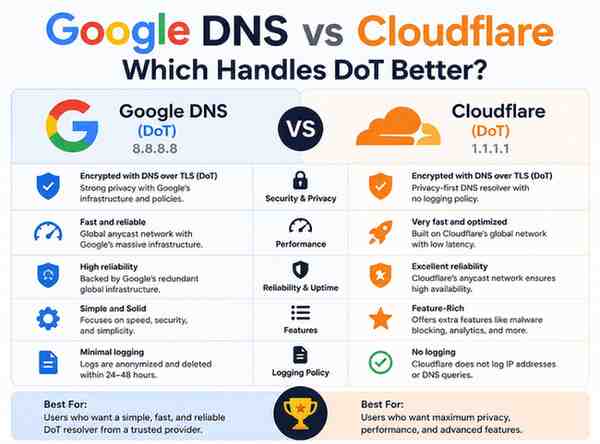
Enable the Secure DNS in Privacy and Security settings of Chrome. This helps to encrypt your DNS requests such that no malicious party will have access to your traffic when accessing a set of websites. Chrome activates the use of Secure DNS in an automatic mode by default.
With careful implementation of the presented recommendations and knowledge of the strong security provided by Chrome, Android users will strongly benefit their Browse security and privacy in a more complicated online world. Beak updated, be informed, and browse safely!