The Hidden Wintoys Performance Trick No One Talks About
Optimising Windows has turned into a maze of complicated registry tweaks, command-line utilities, and settings that are buried deep within the OS. While most users are only aware of basic performance improvements like turning off startup programs and adjusting visual effects, there is an excellent optimisation tool that is hidden from most people’s view, and it has secret performance hacks that can significantly accelerate the responsiveness of your system.
The Ultimate Windows Control Centre You Never Considered
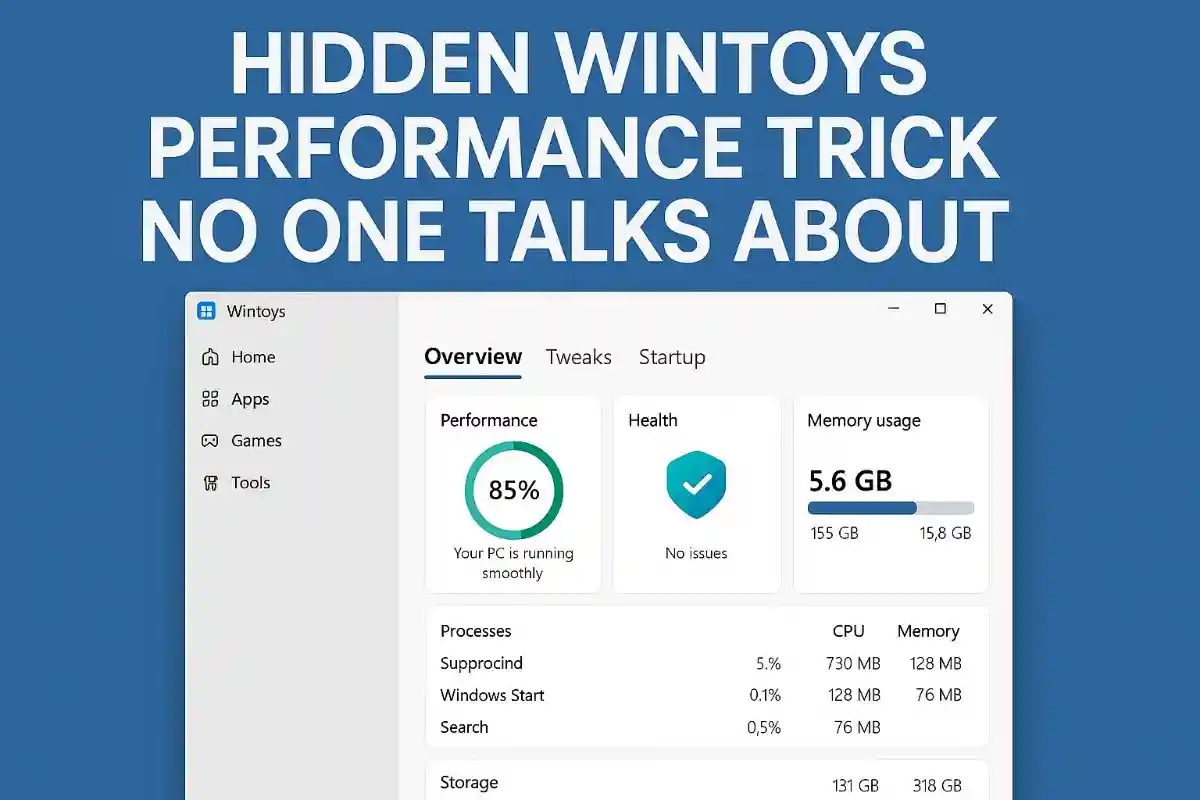
Wintoys is not merely another system tweaker that only changes some settings; rather, it is a complete Windows optimisation centre providing a modern, user-friendly interface through which those numerous hidden system settings that were scattered could be accessed seamlessly without the need for going through many folders or menus. One can download this free software, which simply changes how the user interacts with Windows 11 performance settings, basically bringing together functionalities which usually require registry editing, command-line expertise, or traversing of multiple system menus.
What makes Wintoys exceptional is its capability to unveil hidden Windows characteristics that even most power users are not aware of. In contrast with conventional optimisation software that limits the revelation of system touch only to the basic tricks, Wintoys goes further to expose advanced system controls which potentially could bring about a significant system performance increase if only a little effort is made.
Table of Contents
The Secret Performance Boosters Hidden in Plain Sight
The Ultimate Performance Power Plan Activation
The one feature among the Wintoys’ secret features, which, when activated, is capable of turning on the Windows Ultimate Performance Power Plan in just one step, stands out as the most significant one. It does not mean here that this is the conventional High Performance mode, but rather that it is a very special power plan that turns off all the possible power-saving features so that the system responsiveness is maximised.
In usual cases, there is the use of PowerShell commands to perform this task, but Wintoys provides a simple toggle to make it accessible. In the Ultimate Performance plan, the CPU, GPU, and any other parts are usually fully utilised with maximum power delivery, allowing the reduction of latency and the upgrading of gaming performance.
Hardware Accelerated GPU Scheduling (HAGS) Control
Among the various improvement measures in Wintoys is a try for Hardware Accelerated GPU Scheduling (HAGS). It is a variant where the scheduling of GPU tasks is carried out on the hardware of the GPU instead of the CPU, thereby reducing the overhead of the CPU, and as a result, the input lag may be reduced.
HAGS accelerates the movement of graphics workloads that require several repetitions from the CPU to the scheduling processor that is already embedded within the modern GPUs. So in the case of gaming and graphics-heavy software, this can lead to smoothness, and latency is reduced. In case a feature asks for a driver version of WDDM 2.7 and above, then Wintoys makes it available with ease.
Virtualisation-Based Security (VBS) Performance Impact
One of the most significant and not very obvious performance drains in Windows 11 is VBS (Virtualisation Based Security). Though it is a security feature that ensures memory regions are isolated, gaming performance is said to drop by up to 30%. Additionally, overall system responsiveness is affected by VBS.
Easy access to VBS controls is provided by the Wintoys tool that allows the feature to be turned off to get the best performance. What the tool does is it makes simpler the otherwise complicated procedures of using registry or group policy to disable VBS. Of particular importance is the turning off of VBS, which is mainly advantageous to gaming and performance-orientated workstations.
Network Adapter Onboard Processor Optimisation
An optimisation that has hardly been known is Network Adapter Onboard Processor Optimisation, delivering over Wintoys just as a performance improvement through Wintoys is the Network Adapter Onboard Processor Optimisation. What the feature does is it takes over network processing from the main processor unit, and thus, the CPU load is lowered for the duration of the heavy operations on the network.
The impact on performance for a regular user might not be very significant, and hence users with low-level network activities or new CPUs may not feel the change. The hard work that this optimisation is doing becomes very evident when we talk about data transmission through the network or P2P streaming and gaming scenarios.
The Visual Performance Revolution
Search Indexing: The Hidden Resource Hog
Windows Search indexing is always active even if it largely runs in the background. This feature is demanding for the CPU and the disc I/O in order to keep up with the changes made to the files. From a functionality point of view, it is very useful in finding files; however, many users hardly make use of it, which turns it into a mere performance drain.
Disabling this feature is just a matter of one click in Wintoys, and it will make your computer free from search indexing, hence more free resources for other tasks. It is most efficient in gaming systems, media workstations, or applications where file searching is not critical. The extension of performance can be big, especially in situations with slow storage equipment.
Transparency Effects and Visual Settings Optimisation
The transparency and other visual features of Windows 11 are very attractive but consume GPU resources, and as a result, the performance of lower-end machines is affected. Finer control over these visual effects with Wintoys is provided, and users are free to uncheck the items related to GPU-intensive tasks, for instance, transparency and animations.
Wintoys’ visual settings section provides one-click optimisation for the use of old hardware; resource-intensive visual effects are automatically disabled, as are those that offer little or no functional benefit. Consequently, this upgrade may be the major frontrunner in the increasing responsiveness, especially for systems with integrated graphics and low GPU memory.
Restartable Apps Management
Restartable apps are the cause of probably one of the worst scenarios in Windows 11, where software relaunches after a system reboot without user intervention, and as a result, boot times get longer and system resources are used.
The unassisted application restart function is lifted by Wintoys, and users are able to close automatic app restoration for faster boot times and less memory usage. It is mainly for the users who like the computer system to start fresh and only run the apps that are manually launched.
Advanced System Control Features
God Mode Activation Without Registry Editing
Among the numerous changes, God Mode provides access to more than 200 settings and administrative tools for Windows in one interface. Usually, turning on God Mode implied the need to create folders under specific names and insert complicated GUID strings, a cumbersome and error-prone process.
Wintoys changes the game by allowing one-click God Mode activation. With this feature in the Superuser tweaks section, the God Mode folder is created on your desktop instantly, so you get immediate access to the advanced Windows configurations without the risk of misconfiguration.
Service Management and Optimisation
Windows has many background services, out of which most are not necessary for regular use. Wintoys lets you manage services with a new and improved interface that beats the standard Windows Services console.
The program identifies different services, presents their descriptions, and provides one-click controls to start, stop, and change the service startup type. This gives users the option to streamline their computer by turning off services that are not required without the hassle of dealing with the native service management tools of Windows.
Memory Diagnostic and System Health Monitoring
Wintoys offers the same system health tools that are available only through command lines but with easier access. These include memory diagnostics, system file checker (SFC), deployment image servicing (DISM) and check disc utilities.
Such tools help in identifying and fixing system problems that may slow down the system, for example, corrupted system files, errors in the memory, and issues in the file system. With a user-friendly interface, these sophisticated diagnostic tools become accessible, which permits the user to take care of the system before it deteriorates in performance.
Privacy and Security Performance Impact
Telemetry and Data Collection Optimisation
Windows 11 always records telemetry data and gathers system information, which are tasks that use CPU cycles and network bandwidth. Wintoys offers users a comprehensive privacy setting management system, allowing them to switch off telemetry, location tracking, and advertising features that hamper system performance.
This privacy optimisation is not just about easily switching the settings on and off; it involves the actual processes in the system that collect and send out data. Once the features are disabled, the system should become more responsive, and there will be less network activity in the background.
Update Delivery Optimisation Control
One of the Windows Update Delivery features is that the updates that have been downloaded can be shared with other devices not only on your local network but also on the internet. Although this feature has been designed to lower the bandwidth cost for Microsoft, it can affect the performance of your device’s network and also use your upload bandwidth.
Wintoys enables the users to turn off or set up the Delivery Optimisation parameters in such a way that your device will not be sending out update files to other devices. This will lead to better network performance, especially for those computers that have limited bandwidth or data caps.
The Performance Impact Reality
Through real-world testing of these hidden Wintoys optimisations, the users can see the outcome of improved performance, which is not just theoretical but has real-life applications. The users also testify that after implementing the optimisations, they have noticed not only that their PC is becoming more responsive but also that the boot time has been decreased, together with the gaming experience they have been having, which has been improved.
Wintoys’ main benefit is that it can perform these kinds of optimisations in a safe and reversible manner. The difference between the manual registry and command line modifications and Wintoys is that the latter provides a controlled environment for system optimisation with minimal chances of system instability.
Advanced Implementation Strategy
Systematic Optimisation Approach
The best option to reveal the hidden performance features of Wintoys is to use a systematic approach. To start with, the Ultimate Performance scenario and HAGS enablement should be used for instant benefits, then in a step-by-step manner, unnecessary services and visual effects can be removed based on your usage pattern.
After every modification, check out how your system performs to know which of the changes made brings the most benefit to your hardware and the way you use it. This systematic approach guarantees that the maximum amount of performance can be attained without endangering the stability of the system.
Hardware-Specific Optimisations
No two pieces of hardware are the same, and thus each will require different optimisations for you to get the best performance from it. In the case of gaming systems equipped with dedicated graphics processing units, the focus should be on enabling HAGS along with turning off VBS, whereas in the case of the old machines that are few in resources, you will mostly find that they rely on visual effects optimisation and service management to have good performance.
Wintoys takes the modular approach one step further by giving users the freedom to choose the most suitable way of optimising their hardware and getting the desired performance by considering the nature of their devices. Hence, the targeted approach to system optimisation results in better outcomes than just applying the usual performance tweaks.
Conclusion: The Hidden Performance Revolution
Wintoys is fundamentally a new way of looking at Windows optimisation processes that previously appeared to be complex but now are simplified and integrated into an easily accessible user interface. It turns out that those behind the curtain system features in this free software application can be as effective as those costly ones, whereas the difference in performance is even minimal.
One of the main aspects of Wintoys is that it allows anyone to have the same level of accessibility as would be the case if only very advanced users were the ones who had the knowledge of how to operate the complex Windows system. The tool is great at deftly handling difficult system configurations while still being able to provide clear performance improvements. Thus, it becomes a must-have utility for those that would like to experience Windows 11 at its best.
Performance improvements that are hidden inside Wintoys are not minor changes only; they are substantial system improvements that can totally change the user experience in Windows. Besides the enabling of hidden power plans and the management of advanced GPU scheduling, these features are the leading edge in Windows performance that can be easily accessed by using a modern and user-friendly interface which is available not only for experienced users but also for all users, who have it at their fingertips.